HomeVideoCharacter3DSoundSocialAgencyLibraryProfilePricing
🎬 Tool 💡 Tips & Tricks 💳 Pricing ✉️ hello@jovon.ai
JOVON AI Prompt Studio
🎬 Tool 💡 Tips & Tricks 💳 Pricing ✉️ hello@jovon.ai
Pro Knowledge

What the Best
AI Creators Know.

The lessons learned from hundreds of AI video generations. What works, what breaks, and why.

📚 Full Creator Hub — Platform Guide, Prompting, Storyboards, Costs & More →
How To Use JOVON

Watch JOVANA
Walk You Through It.

JOVON's AI creative director breaks down exactly how to go from idea to generated video in seconds.

Tips & Tricks

Six Rules That
Change Everything.

Most AI video failures come down to the same mistakes. These six rules fix them.

01
One Complex Action Per ShotToo many actions in one shot and the AI drops characters mid-scene. Keep each shot focused on one clear, specific movement. Let the next shot handle the next action.
02
Never Use Exit LanguageWords like "runs away," "jumps off," "walks out," or "exits frame" literally tell the AI to remove your subject. Keep them in frame at all times — describe where they stay, not where they go.
03
Triple-Lock Important ElementsSay the same thing three different ways. "Stays in frame." "Remains fully visible." "Does not leave the shot." AI video generators respond to repetition. If it matters, say it three times.
04
Slow Motion vs. Explosive LanguageYou can't use "explodes" or "shatters" in the same shot as "50% slow motion." The AI can't reconcile them. Use physical description instead — "debris cascades outward at reduced speed."
05
Transformation = Fluid Language OnlyNothing breaks, scatters, or detaches unless you're in Destruction Mode. For clean transformations use: sweep, ripple, cascade, reveal, seamless, unbroken, liquid. These words keep the AI stable.
06
Lock Lighting in Every ShotLighting drifts between shots unless you pin it. If your scene is golden hour, write "golden hour warm light" in every single shot description. Don't assume the AI remembers.
07
Generate at 720p, Then UpscaleMaking 4K directly is expensive. Generate your clip at 720p, then send it to Upscale (1080p / 2K / 4K for video, 2×/4× for images) — you get crisp high-res output for a fraction of the credits. It's the same trick the big studios use. Unlocks on Pro.
3D & Characters

Build It Once.
Use It Everywhere.

How to get clean 3D models and characters that stay consistent across every render — straight from how the models actually behave.

01
Start From an Image, Not a PromptImage → 3D beats text → 3D almost every time. The model has something concrete to copy instead of guessing, so proportions and silhouette come out closer to what you pictured. Make the picture first, then convert it.
02
One Subject, Plain BackgroundThese models rebuild a single object from a single reference. Busy backgrounds, cropped edges and two objects in frame all confuse the shape stage. Front-on, whole thing visible, nothing behind it.
03
Respect the Input LimitsReference images must be JPG, PNG or WEBP, between 128 and 5000 pixels, and under 6 MB. Prompts cap at 1024 characters. Oversized files are the most common reason a 3D job never starts.
04
Rapid to Explore, Pro to FinishHunyuan3D Rapid (56 credits) is a distilled model built for fast iteration — use it to try ten ideas cheaply. Hunyuan3D Pro (108 credits) runs the full model with higher-fidelity textures. Draft on Rapid, commit on Pro.
05
Seed3D Needs a PictureSeed3D 2.0 (66 credits) is image-only and exports USD/USDZ for Apple and AR workflows. It greys out in Text → 3D on purpose — that is not a fault. Switch to Image → 3D or Load from Library and it wakes up.
06
Tripo for Clean TopologyTripo H3.1 (41 credits) gives real PBR materials and lets you cap the mesh density, which matters when the asset has to run in a game engine rather than sit in a render. Ask for quad topology and you get FBX instead of GLB.
07
PBR Means No Material WorkEvery model here returns physically based maps — albedo, normal, metallic, roughness. Drop the .GLB into Blender, Unity or Unreal and it is already shaded. You are not rebuilding materials by hand.
08
Lock the Character FirstBuild the face in the Characters studio and give it an @handle before you generate anything else. That handle is what keeps the same person turning up in every image, clip and 3D model — the reason your character stops drifting between renders.
09
Dress It, Then Send ItEquip hair, tops, shoes and accessories — each gets its own @handle you can drop into any prompt. When the look is right, hit Send to 3D and the character carries straight over to the 3D Studio as your reference image.
10
Filming Every Angle Is FreeOnce a model exists, filming it from five fixed angles costs nothing — no second generation. That angle pack is your reference sheet for keeping the character on-model in later prompts. Always film before you move on.
11
Green Dot In The Editor?That’s Standby — it kicks in after 2 quiet minutes. Your timeline is exactly as you left it; just click to wake.
May 2026

Prompt of
the Month.

Run this in Seedance or Kling. Not TikTok's built-in generator — it won't handle it.

Scene Type — Duo / Two Characters
Cat Boxing Scene
Two cats, one bed, perfect comedic timing. A masterclass in the triple-lock technique — both subjects visible in every frame.
Cozy sunlit bedroom, morning light through window, sage green quilted bedspread, wooden bed frame, houseplants in background, no text no watermarks, 4K HDR, Grey brown orange tabby cat curled up sleeping on right side of bed, tail fully extended and still, eyes completely closed, deeply asleep, Black and white tuxedo cat already in low crouched position on same bed, belly flat against bedspread, both eyes intensely fixed on orange tabby tail, rear end slowly wiggling left to right two times then three times, muscles tensing, getting lower, Tuxedo cat then pushes off with back legs and slides both front paws forward landing squarely on orange tabby tail, deliberate and satisfying, Orange tabby cat startles awake immediately, sits up straight, looks left then right confused, then locks eyes directly on tuxedo cat who is sitting right beside him looking away pretending to be innocent, Orange tabby cat raises both front paws and rapidly taps tuxedo cat face left right left right, soft quick annoyed boxing strikes, tuxedo cat sits and takes every single hit blinking, Both cats visible in every frame, neither cat leaves frame, tuxedo cat stays on bed entire video, continuous shot, slow motion 50% speed, photorealistic, cinematic, 4K HDR, film grain, TikTok vertical 9:16 format
Duo Scene Triple Lock Slow Motion Seedance Kling
What You Can Build

Every Scene Type.
One Tool.

JOVON writes prompts for any cinematic scenario — structured, locked, and ready to drop into Seedance, Kling, or Runway.

⚔️
Fight Scenes
Choreographed action sequences with impact timing, speed ramps, and shockwave effects locked to frame.
🚗
Car & Transformation
Street racing, vehicle reveals, and cinematic transformation sequences. Destruction mode available.
👗
Fashion & Character Walks
Runway-style character entrance prompts with selective focus, crowd blur, and golden hour lighting.
📦
Product Reveals
Cinematic product launch sequences with liquid motion, seamless reveals, and dramatic lighting arcs.
🎵
Music Video Style
Beat-synced visual sequences, neon atmospheres, and energy arc pacing built for short-form content.
🌆
Atmosphere & Mood
Pure cinematic vibe — slow motion lifestyle, textures, light, and movement. No story needed.
🤝
Duo Scenes
Two-character prompts with triple frame lock — both subjects visible in every shot, every time.
🧍
Content Avatars
AI influencer videos, brand spokesperson content, and consistent character prompts for recurring use.
Deep Dives

Guides That Actually Help You Generate.

Everything you need to know about writing AI video prompts — from beginner to advanced.

Platform Guide

How to Write Seedance 2.0 Prompts That Actually Work

Seedance 2.0 is one of the most powerful AI video platforms available — but it responds very differently to prompts than Kling or Runway. Here's exactly how to write for it.

Key Rules for Seedance 2.0
  • Lead with the subject. Seedance responds best when the main subject is in the first 5 words.
  • Specify motion type early. "slow motion", "timelapse", "continuous pan" — put it before the scene description.
  • Add lighting in every prompt. "golden hour", "studio lighting", "moonlit" — Seedance uses lighting cues heavily.
  • End with "4K, cinematic, photorealistic". These quality anchors consistently improve output.
  • One action per shot. Seedance handles single, continuous actions far better than sequences.
✦ Example Prompt

"Snow leopard stalking through deep powder snow, slow motion, golden hour warm backlight, breath visible in cold air, 4K cinematic, photorealistic, continuous motion, no cuts"
Try This in JOVON →
Platform Comparison

Kling 3.0 vs Seedance 2.0 — Which Platform for Which Content

Both are top-tier platforms but they excel at completely different things. Using the wrong one wastes credits and produces weak results. Here's the breakdown.

Content Type Seedance 2.0 Kling 3.0
Wildlife & NatureBestGood
People & CharactersGoodBest
Cinematic LandscapesBestGood
Action & SportsGoodBest
Product ShowcaseGoodBest
Medical & ScienceBestGood
Fashion & EditorialGoodBest
Generate for Either Platform →
Troubleshooting

Why Your AI Video Prompts Keep Failing (And How to Fix It)

Most bad AI video results come from the same 5 mistakes. Here's how to diagnose and fix each one.

❌ Problem: Subject disappears mid-video
✅ Fix: Use "triple-lock" — say "stays in frame", "remains fully visible", "does not exit shot" — three ways, in every shot.
❌ Problem: Wrong lighting or color tone
✅ Fix: Pin lighting explicitly. "golden hour warm backlight" not just "sunset". Vague lighting = random lighting.
❌ Problem: Too many things happening at once
✅ Fix: One action per shot. If you need a sequence, break it into multiple separate prompts.
❌ Problem: Video looks like stock footage, not cinematic
✅ Fix: Add "anamorphic lens", "film grain", "cinematic color grade", "shallow depth of field" to anchor the aesthetic.
❌ Problem: Characters look different between shots
✅ Fix: Describe physical appearance in every shot. AI has no memory between generations — re-describe every time.
Fix Your Prompts in JOVON →
Prompt Formulas

5 AI Video Prompt Formulas That Work Every Time

These are the structural formulas behind every great AI video prompt. Copy, fill in the blanks, generate.

FORMULA 1 — Wildlife
[Animal] + [action] + [environment] + [lighting] + [speed] + "continuous motion, no cuts"
Example: "Snow leopard stalking through powder snow, mountain ridge, golden hour, slow motion, continuous motion, no cuts"
FORMULA 2 — Cinematic
[Camera move] + [subject] + [environment] + [time of day] + [mood] + "film grain, anamorphic"
Example: "Slow drone pull-back over mountain canyon, dusk, dramatic storm clouds, epic scale, film grain, anamorphic lens"
FORMULA 3 — Fashion
[Subject] + [clothing detail] + [setting] + [lighting] + "editorial, Vogue quality, shallow DOF"
Example: "Model in flowing silk dress, fabric billowing in slow motion, rooftop at sunset, editorial, Vogue quality, shallow DOF"
FORMULA 4 — Action
[Subject] + [explosive action] + [impact detail] + "ultra slow motion, high frame rate, motion blur"
Example: "Boxer throwing punch, impact in slow motion, sweat droplets scattering, ultra slow motion, high frame rate, motion blur"
FORMULA 5 — Medical/Science
[Subject] + [biological process] + "anatomically accurate" + [visual style] + "no cuts, continuous"
Example: "Human heart beating, arterial blood flow illuminated, anatomically accurate, bioluminescent visualization, no cuts, continuous"
Use These Formulas in JOVON →
Beginner Guide

How to Generate Cinematic AI Video Without a Film Crew

In 2026, a single creator with a laptop can produce footage that would have required a $50,000 production budget five years ago. Here's exactly how.

The secret isn't the AI platform — they all produce professional results when given the right input. The secret is the prompt. A weak prompt produces stock-footage-looking output. A strong, structured prompt produces cinematic footage indistinguishable from a real shoot.

JOVON exists to close that gap. It builds the technical language — camera direction, lighting specification, motion style, platform optimization — so you don't have to learn it. You describe what you want to see. JOVON translates it into a prompt that works.

Try Cinematic Free →
The 3-step cinematic workflow:
1
Select Cinematic category in JOVON
This pre-loads film grammar — anamorphic lens language, color grade parameters, and composition rules — automatically.
2
Describe your shot in one sentence
"Drone shot over canyon at golden hour" is enough. JOVON adds the cinematic technical layer on top of your description.
3
Paste into Seedance 2.0 or Kling 3.0
These two platforms produce the most consistently cinematic results. Start with Seedance for landscapes, Kling for character-driven shots.
✦ Real Result Prompt

"Slow cinematic drone pull-back over a vast desert canyon, golden hour, dramatic storm clouds on horizon, epic scale, warm amber light, film grain, anamorphic lens flare, continuous motion, photorealistic, 4K"

New & often missed

POWER FEATURES

Small things that make a big difference. Full walkthroughs live in the Manual.

🔒
Lock your character across shots
In Storyboard Studio, keep the consistency lock on. Your first rendered frame becomes the anchor and every later shot matches its character, brand and lighting. Prefer another frame? Hit ⚓ Anchor on it and re-render the rest.
🖼️
Reuse art as a reference
Add up to 4 references — a character sheet, a brand mark, a lighting look — from your computer or straight from your library. Every frame is generated to match them.
🔎
Publish & get discovered
Save & make a storyboard public and it lands in the Browse channel — searchable by name and interest. Share the direct link and anyone can view the full sheet.
📣
Post in three taps
From any tool, Post to public runs a quick pick → caption → preview wizard. Feed videos auto-play as viewers scroll, so a clean cover frame earns more watch time.
🧊
Image → 3D in one hop
A clean, single-subject image on a plain background makes the best 3D model. Generate it in Image Studio, then send it to 3D Studio and download the GLB for Blender.
💳
Watch the credit counter
Every button shows its cost before you click, and your balance sits top-right. First order? Apply the launch coupon on the pricing page for a discount.
Read the full manual →
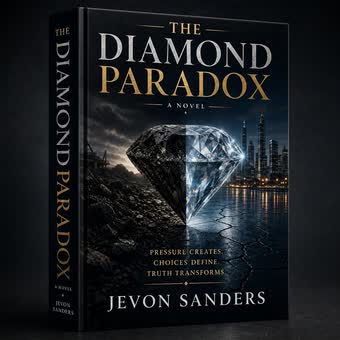
The Diamond Paradox - a novel by Jevon Sanders
From the Creator of JOVON
THE DIAMOND PARADOX

A sci-fi time-travel novel by Jevon Sanders. Pressure creates. Choices define. Truth transforms.

Buy the Book - $4.99 →Learn more →

⚠️ AI Disclaimer: JOVON generates prompts based on your input. Results may vary. AI-generated content may contain inaccuracies or not exactly match descriptions. AI makes mistakes. Always review before use.